Audacity 4.0: The Big Shift to Clip-Based Editing
 by ahsan
September 03, 2026
7 min read
by ahsan
September 03, 2026
7 min read
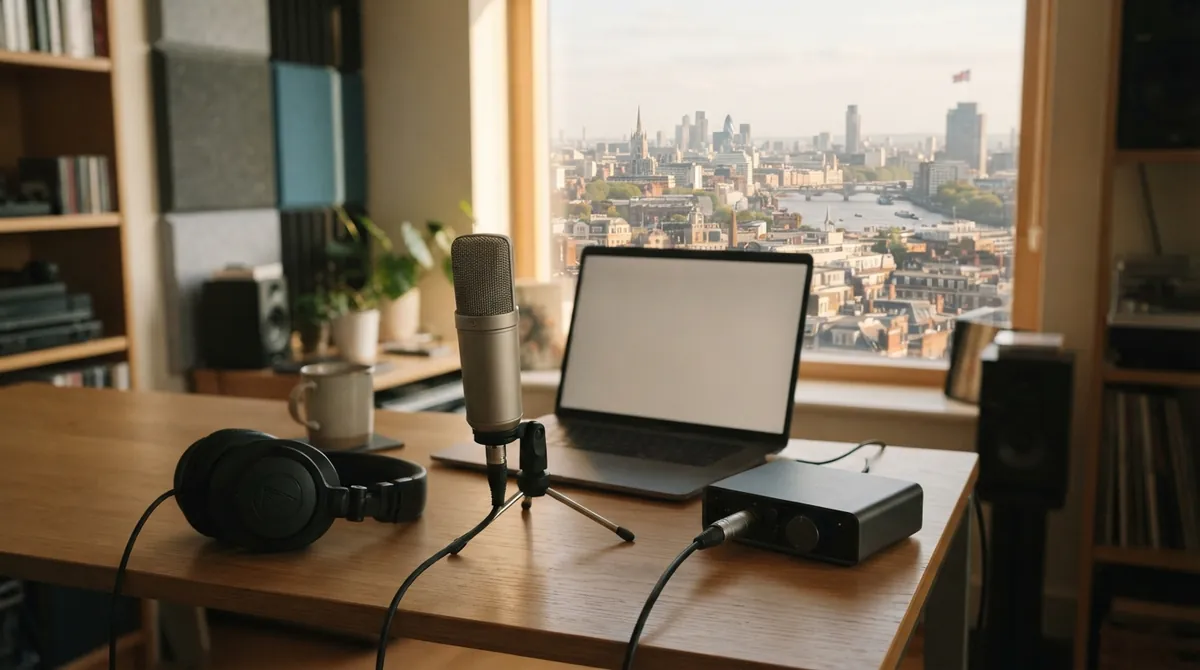
Audacity has always made audio feel tangible: a waveform, the visual shape of recorded sound, a cursor, and a handful of tools. Audacity 4.0 keeps that approachable spirit, but it changes the object you work with. Instead of treating a track mostly as a long strip of time, the new release puts individual clips at the center.
Released on September 3, 2026, Audacity 4.0 is a major interface and workflow rebuild based on Qt, a cross-platform toolkit for desktop applications. Most Audacity 3 workflows still have a path forward, although controls have moved and several older features are absent. What changed in Audacity 4.0, and is it safe to bring an Audacity 3 project across? The answer depends less on your microphone than on how you edit.
Clips are no longer background details
A clip is a piece of audio inside a project: a recording, an imported file, or a fragment created by splitting. In older workflows, you often selected a time range and then performed an action on the track. Audacity 4 lets you select the clip itself by clicking its header, then Shift-click other clips even when they are far apart.
That matters during real editing. Select several voice takes and you can move, trim, or time-stretch them together, with time-stretching changing a clip's duration. Group clips when they belong together, such as a spoken line and a quiet background recording. You can also move a clip between mono tracks, which carry one audio channel, and stereo tracks, which carry two.
One behavior deserves attention before an important session: dropping one clip over another replaces the part underneath the overlap instead of being blocked. Think of two strips of tape meeting; the new strip consumes the section it covers. Alignment guides and snapping, which makes edits lock to exact positions, help you place clips accurately rather than relying on tiny mouse movements.
Splitting has a clearer home too. Press or hold S, then click the waveform or clip header. Related commands cover split-cut, split-delete, splitting at silences, and sending a split piece to a new track.
Click a clip header select one clip
Shift-click clip headers select several clips
Hold S and click split at that point
It is a compact map of the new editing model, not another collection of hidden modes to memorize.
Ripple editing makes timing an explicit choice
Sync-Lock was Audacity 3's named safety net for keeping related tracks aligned during edits. Audacity 4 replaces it with explicit operations built around ripple editing. Ripple editing means that later material can move to close a gap or make room while preserving the timing relationship between tracks.
Picture a podcast with a voice track, music bed, and sound effect. Delete a four-second cough from the voice. In one situation, you want four seconds of silence to remain. In another, you want the music and sound effect to move forward so the episode stays synchronized. Audacity 4 makes those different intentions visible in the delete, cut, and paste commands instead of hiding them behind a global switch.
The older Select, Envelope, Draw, and Multi-tool modes are gone as separate buttons. Their jobs now appear where they make sense. A volume envelope, a line that changes loudness over time, lives in Clip gain mode. Sample drawing appears when you zoom far enough to see individual samples, the tiny measurements used to represent digital audio. Splitting is available through S, and track or effect controls use consistent rotary knobs with fine adjustment and double-click reset.
There is a learning curve here. I still find context-sensitive tools less memorable than four old buttons until the workflow settles into muscle memory. The payoff is a less crowded interface once you stop looking for a tool that no longer exists.
The interface finally respects modern displays
Audacity 4's interface is rebuilt with Qt and native high-DPI support. High-DPI means a screen packs more pixels into the same physical area, as on many newer laptops and 4K monitors. Without proper scaling, text and icons can look soft or controls can become awkwardly small; the Qt foundation gives Audacity a common way to adapt across Windows, macOS, and Linux.
Toolbars and panels can now be moved, docked, floated, hidden, and saved as Workspaces. A Workspace is a named arrangement of the application, so you can keep one setup for podcast cleanup and another for music editing. Audacity includes Modern, Classic, and Music workspaces, plus light, dark, and high-contrast themes, accent colors, track colors, and different clip styles.
The Classic workspace should make the transition gentler for long-time users. A Home screen with recent-project thumbnails adds a small but welcome touch: reopening a session feels less like searching through a drawer of identically named files.
Recording and playback feel less pinned down
The playhead, the line showing the current playback position, remains visible while you navigate and can be dragged to a new location. Playback can seek elsewhere without stopping, which makes checking a suspicious click or late entrance less disruptive.
Recording can begin at any position on the timeline. Audacity creates a clip there instead of forcing you to move existing material out of the way. For a voiceover, you can leave the music bed in place, click near the section that needs a replacement take, and record into the intended spot.
Audio Setup can use system-default devices, refresh the device list, follow operating-system changes, and map inputs more deliberately by choosing which source feeds each channel. Official Windows builds include ASIO, or Audio Stream Input/Output, a low-latency driver path commonly used with audio hardware. Track headers also carry live playback and recording meters, making level problems easier to spot.
Effects and spectrogram work fit the new shell
Built-in effects, sound generators, and analysis tools have been rebuilt for the Qt interface, with more consistent preset handling. A plug-in is an add-on that supplies an effect or instrument. Audacity 4 supports VST3, a common cross-platform plug-in standard; Nyquist, Audacity's own effect format; LV2, an open format common on Linux; and Audio Units, Apple's plug-in format on macOS.
The spectrogram has also been refreshed. A spectrogram shows frequency content changing over time, which can reveal a hum, whistle, or burst of noise that is hard to spot in a waveform alone. Clearer guides and rulers, along with faster rendering, make the view less intimidating when you are hunting for a problem inside a recording.
Compatibility is not universal. VAMP and LADSPA, older plug-in and analyzer formats, cannot be loaded in Audacity 4.0, so projects built around them deserve a test run before migration.
Treat .aup4 as a one-way door
Audacity 4 introduces .aup4, its native project format: an editable session file rather than a finished MP3 or WAV. An Audacity 3 .aup3 project opens and converts to .aup4 without changing the original file, but the converted project cannot be saved back to .aup3. Older .aup projects can be imported as well.
episode.aup3 → open in Audacity 4 → episode.aup4
episode.aup4 → not a project for Audacity 3
The safest upgrade routine is pleasantly boring: duplicate an important project, open the copy in Audacity 4, inspect the tracks and effects, and keep Audacity 3 available until the new file survives a complete edit and export. The .aup4 format can also retain preview thumbnails and additional clip and appearance information, which helps explain why this is a genuine format change rather than a renamed extension.
Who should move to Audacity 4 first?
For a new user, Audacity 4 has a clearer mental model. Clips can be selected, grouped, rearranged, and stretched without learning as many separate modes. A podcaster making cuts and replacement takes, or a musician assembling recordings, will notice the difference quickly.
Established projects call for more caution. Audacity 4.0 ships without Time Tracks, which control changing speed or tempo; Note/MIDI tracks, where MIDI stores musical note events; the Mixer, a console-style mixing view; Macro Manager and its scripting pipe, which automate commands; VAMP and LADSPA hosting; and Play-at-speed. Some exporting, rendering, analyzer, and effect features are missing too, with rendering meaning the process of turning a project into final audio.
Audacity 4.0 is best understood as a new editing room built on familiar foundations. The logo changed, the panels moved, and the old map no longer matches every doorway. But the central promise is clear: audio pieces should behave like pieces, timing choices should be visible, and the interface should adapt to the way you work rather than making you adapt to its history.
Comments (0)
No comments yet. Be the first to respond!
Leave a Comment
Your comment will be visible after review.