When an AI Agent Needs a Finger: The Engineering Behind Click-Through Mac Overlays
 by ahsan
October 09, 2026
5 min read
by ahsan
October 09, 2026
5 min read
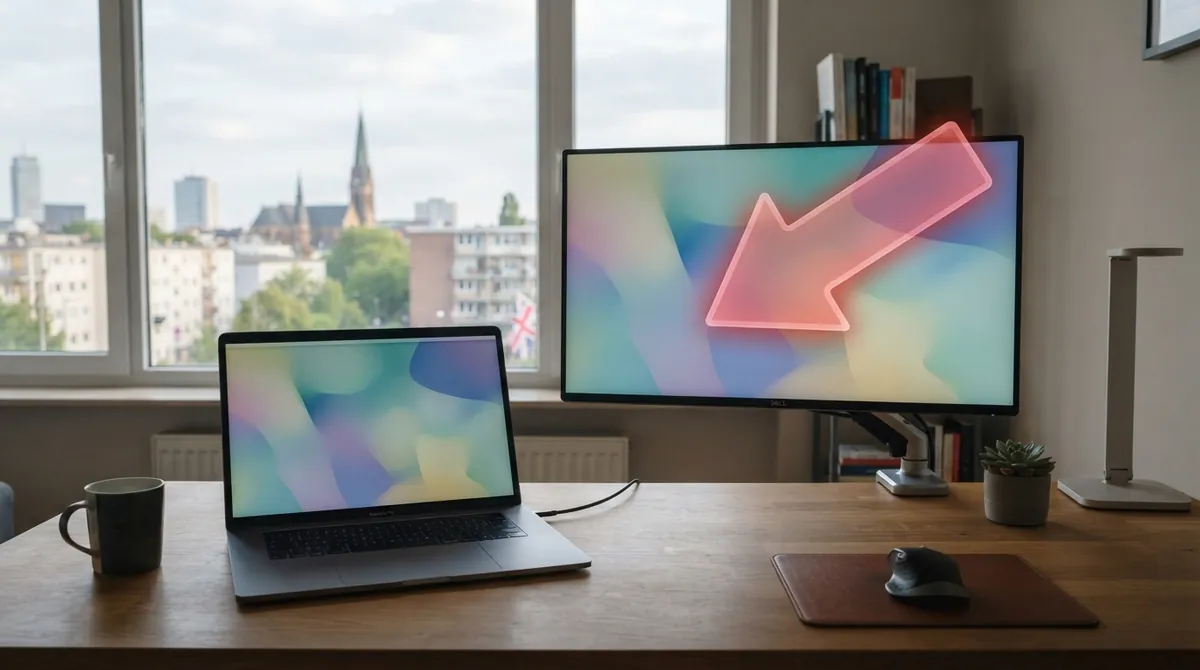
An agent has finished installing a package, editing a configuration file, and running tests. Then macOS puts up a permission dialog that only a person should approve. The agent can recognize the button, but sending a vague message like “click Allow” leaves you hunting through windows.
An AI agent is software that can plan a task, call tools, and inspect the results instead of answering one prompt and stopping. The missing piece is often a safe handoff back to a human. A useful search question follows: how can an AI agent point at a button without taking control of your Mac?
The missing sense of direction
A small open-source macOS project called bigarrow approaches that problem with a command-line interface, or CLI. A CLI is a program controlled by typed commands rather than a traditional window. Its job is deliberately narrow: draw an arrow, box, ring, or label above the desktop, then get out of the way.
As of October 9, 2026, the project’s latest tagged release is 0.4.2. It targets macOS 14 or newer and is written in Swift, Apple’s programming language for its platforms. Installation through Homebrew, a popular macOS package manager, looks like this:
brew install franzenzenhofer/tap/bigarrow
bigarrow install-skill
bigarrow point --element "Allow" --app "System Settings" --text "Click Allow to continue" --duration 10
The second command installs an instruction bundle for agent tools such as Claude Code and Codex. It teaches an agent when a visual handoff is appropriate, how to choose a target, and when to remove the arrow afterward.
The important boundary is that bigarrow does not click, type, or capture the screen. It points. The person remains responsible for approving a payment, entering a two-factor authentication code, accepting a legal checkbox, or granting a sensitive permission.
Three ways to find the target
The first targeting method uses coordinates:
bigarrow point --at 760,500 --text "Click here"
Those numbers identify a position in global screen coordinates. The project uses top-left logical points, which are interface coordinates rather than raw physical pixels. That distinction matters on Retina displays and across multiple monitors.
A second method draws around a region:
bigarrow point --rect 700,450,180,90 --style box --text "This dialog"
The third method uses a visible interface label:
bigarrow point --element "Allow" --app "System Settings" --text "Click Allow"
This relies on the macOS Accessibility API, a system interface that exposes information about user-interface elements such as buttons, labels, roles, positions, and available actions. The agent does not need to guess where the button sits in a screenshot when macOS can identify the element by name.
Window targeting handles a different kind of confusion:
bigarrow start --window "Safari:Inbox" --text "Use this window"
That is useful when several browser windows are open. The arrow can follow a window, bring the target application forward, and hide while another application covers it. Commands also support machine-readable JSON output and distinct exit codes, so an agent can tell the difference between bad input, a missing target, and a missing permission.
Why a transparent overlay is harder than it looks
An overlay is a window drawn above other windows. A beginner might imagine a screenshot-sized canvas with an arrow painted on it, but a useful overlay has to cooperate with the desktop beneath it.
The macOS implementation uses AppKit, Apple’s framework for building Mac interfaces. A simplified version of the important window settings looks like this:
let panel = NSPanel(
 contentRect: rect,
 styleMask: [.borderless,.nonactivatingPanel],
 backing:.buffered,
 defer: false
)

panel.ignoresMouseEvents = true
panel.collectionBehavior = [.canJoinAllSpaces,.fullScreenAuxiliary]
A borderless panel has no title bar or ordinary window frame. A nonactivating panel can appear without activating the application that owns it. The ignoresMouseEvents setting makes the window transparent to mouse input, allowing clicks to reach the application underneath. Collection behavior controls how the panel appears across macOS virtual desktops, called Spaces, and full-screen applications.
The real challenge comes when the overlay needs one small interactive area. bigarrow lets an optional close button respond to a click while keeping the arrow head and target area pass-through. That means the person can dismiss the sign without accidentally intercepting the button the sign is pointing toward.
There is another subtle trap: focus. A normal macOS application loop can activate a detached utility when it starts processing events. That would be disastrous for an agent helper because the arrow might appear, steal keyboard focus, and interrupt whatever you were typing. The project avoids that behavior by pumping events itself, and its tests verify that the frontmost application does not change.
Permissions should follow the action
Drawing the overlay does not require Screen Recording or Accessibility permission. Looking up a named element, detecting a click, or bringing a specific window forward does use macOS accessibility features. The permission belongs to the application that launched the shell, such as Terminal, iTerm, VS Code, or an agent host, rather than to the drawing binary itself.
That split is valuable. The agent can display a visual reminder without receiving broad access to the desktop. When a permission is needed, bigarrow doctor can identify the responsible application and report the available displays, giving the agent a precise explanation instead of an opaque failure.
Cleanup is part of the design
Temporary UI has a habit of becoming permanent when automation forgets to remove it. bigarrow treats lifetime management as a core feature. A one-shot point command lasts eight seconds by default, while a persistent start command lasts 300 seconds unless another duration is supplied. --duration 0 is the explicit choice for an unlimited lifetime.
The agent can stop arrows directly, clear every arrow with stop --all, or attach cleanup to a session hook. An arrow can also disappear when the process that created it exits. Those guardrails matter because an abandoned pointer is more than clutter: it can make the person trust the wrong instruction later.
Visual language for a human handoff
The project offers several shapes and styles because visual emphasis carries meaning. An arrow suggests direction. A ring marks a spot without covering it. A box frames a region. Bend, straight, zigzag, and spiral paths let the sign fit different layouts, while border-only marks keep the underlying interface visible.
The October 9, 2026 0.4.x releases added and refined a spiral shape that loops around its sign before heading toward the target. That detail may sound playful, but it reflects a serious design goal: an agent’s message should be hard to misread without becoming an obstacle.
The larger lesson is not that software can draw an arrow. It is that trustworthy automation knows when to stop acting and start indicating. A bright sign on the screen can turn an unclear terminal instruction into a visible, bounded handoff: the machine finds the place, the human makes the decision, and the overlay disappears when its work is done.
Comments (0)
No comments yet. Be the first to respond!
Leave a Comment
Your comment will be visible after review.